
Set up in Cowork
Cowork uses a graphical setup rather than slash commands. These steps walk you through adding the Chucks marketplace, installing the plugin, and enabling its connector so Claude can actually call the monster-database tools.
1. Open Customize
In the Cowork sidebar, click Customize.
2. Start adding a marketplace
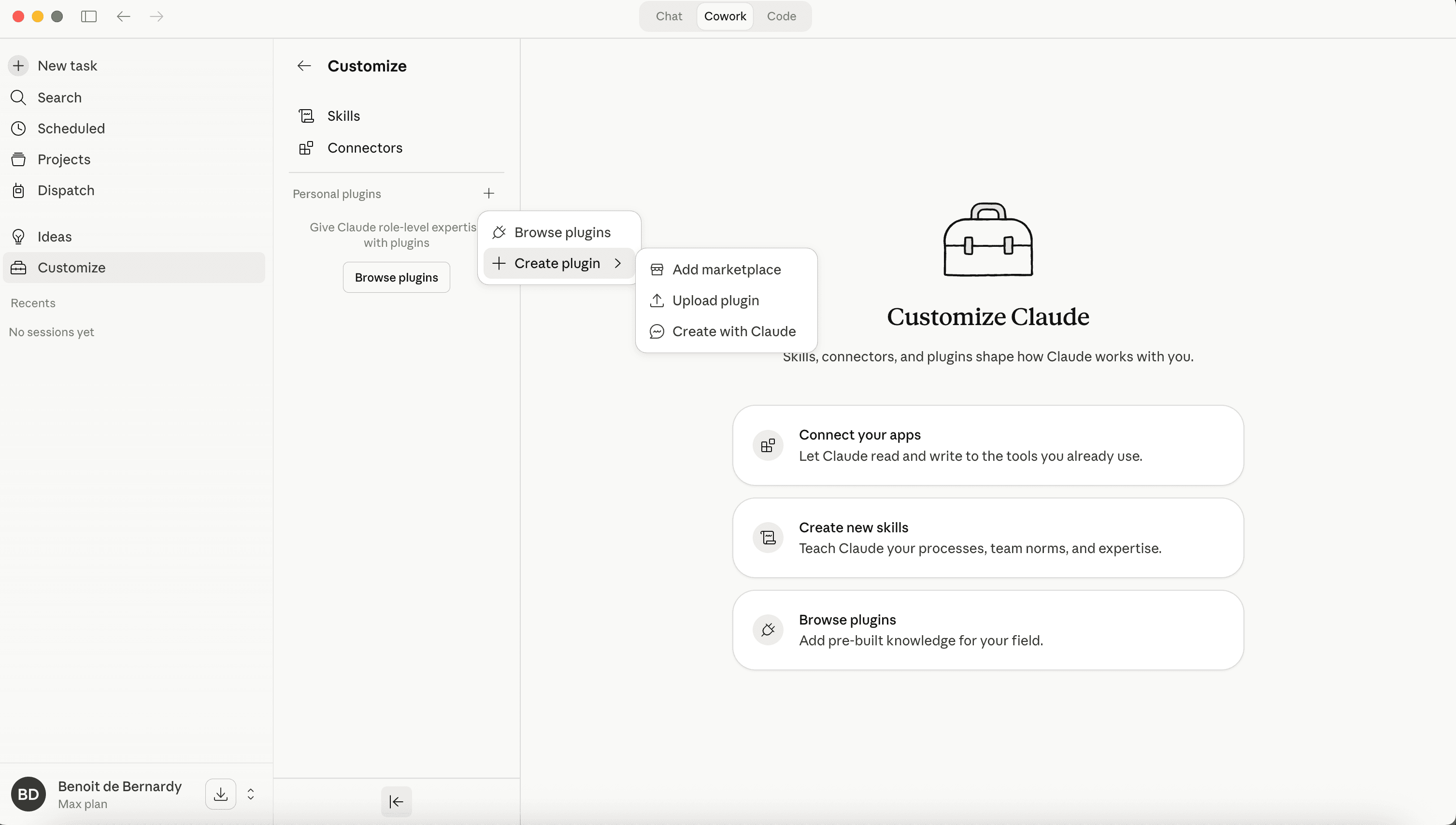
Next to Personal plugins, click the + button, then choose Create plugin → Add marketplace.
3. Paste the marketplace URL
In the dialog that appears, paste the marketplace URL and click Sync:
https://github.com/chucks-ai/claude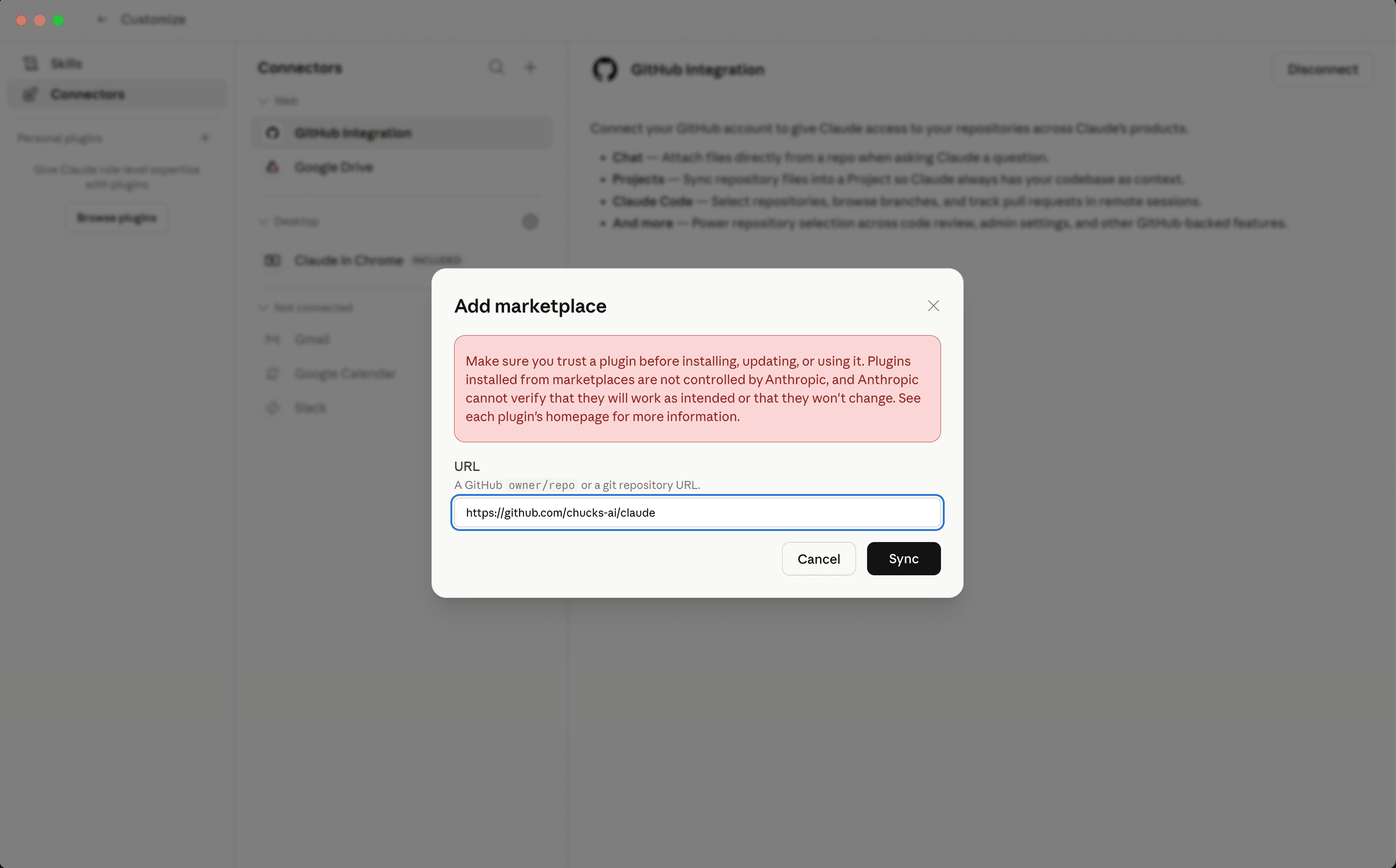
4. Install the plugin
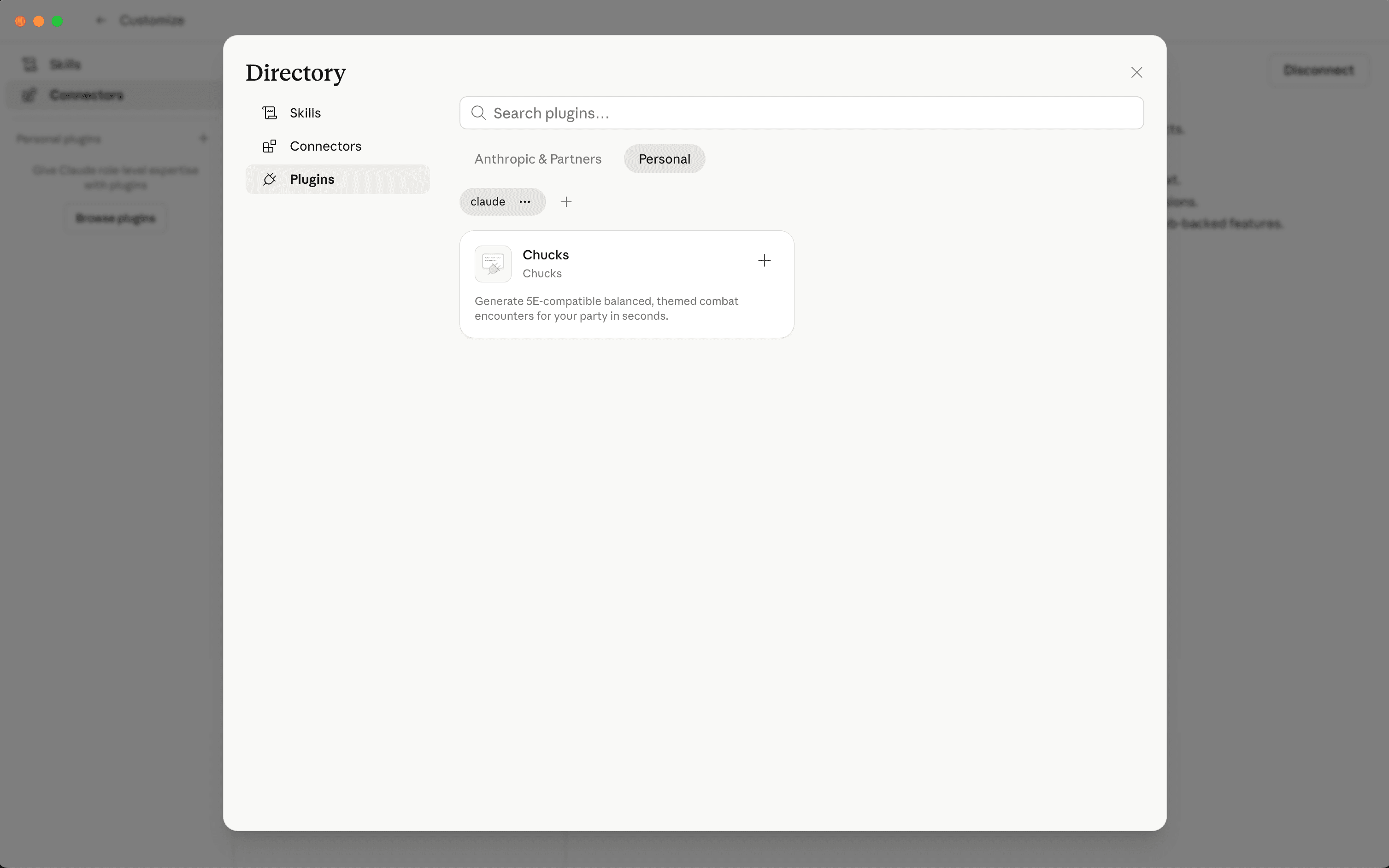
Open the plugin directory, switch to the Personal tab, find the Chucks card, and click its + button.
5. Enable auto-sync
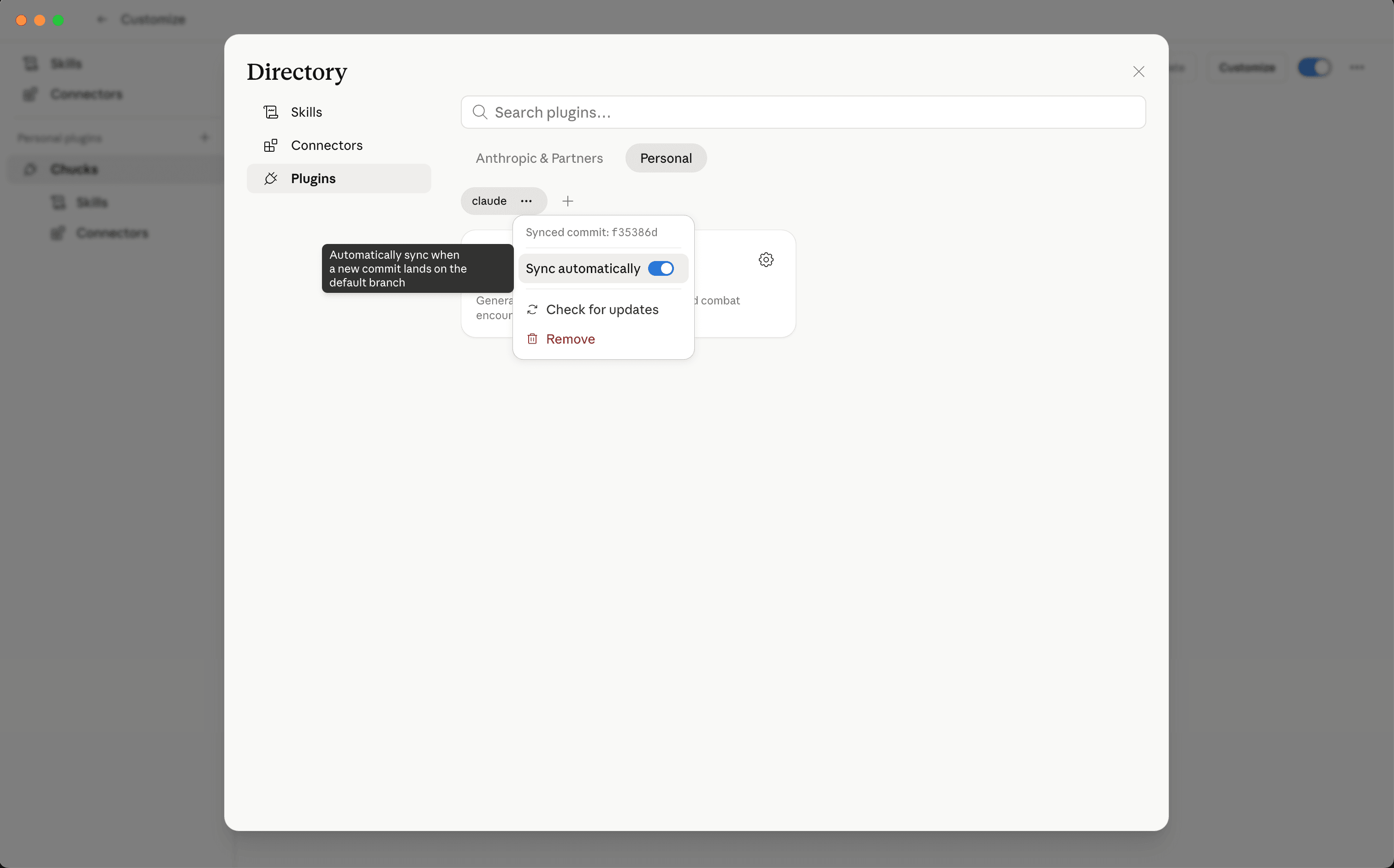
At the top of the directory, click the … menu next to the chucks marketplace pill and turn on Sync automatically. This keeps the plugin up to date as we ship new tools and fixes; without it, you'd need to come back and click Check for updates by hand.
6. Activate the connector
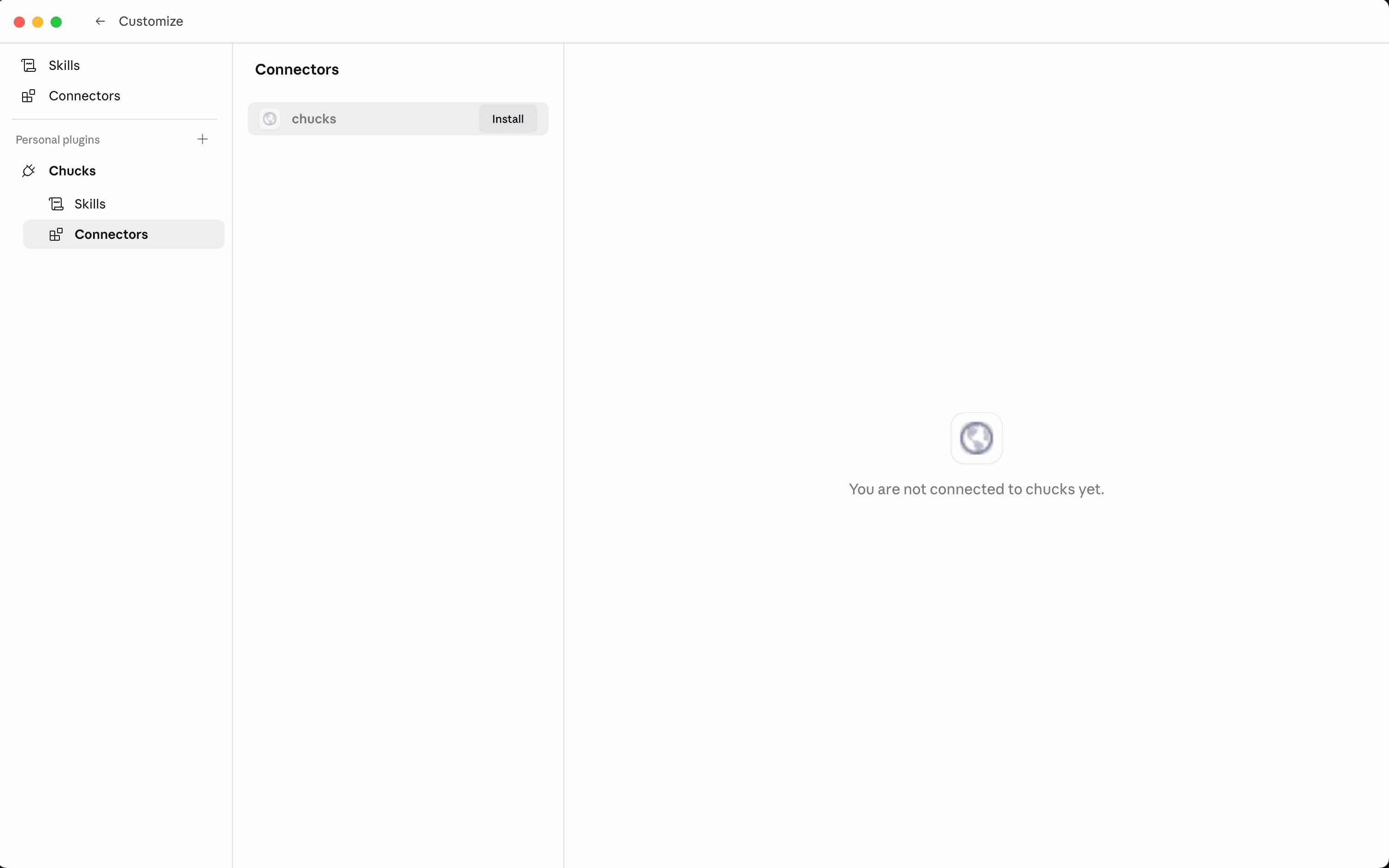
Installing the Plugin doesn't connect Claude to the monster database — you have to activate the Connector yourself. In the Customize sidebar, expand Chucks under Personal plugins and click Connectors. On the chucks card, click Install. The right pane stops saying “You are not connected to chucks yet” once the connection succeeds.
7. Try it
Open a new Cowork chat and ask Claude to build you an encounter. The encounter-builder Skill kicks in when your prompt looks like an encounter request, and Claude calls the connector for the monster data.
Stuck? See your first encounter for a full worked example, or prompting tips for getting better results.