
Set up Chucks Chat
Chucks Chat is the hosted chat, built right into this site. There's nothing to install: sign up, add your own AI provider key, and start using Chucks in three steps.
Before you start
Chucks Chat is bring-your-own-key: it runs on your own AI provider account, and you pay that provider directly for usage (typically a few cents per request). Before you sign up, set up an account with one of the supported providers and create an API key:
Most providers require you to add a small amount of credit (or a billing method) before the key will work, so do that on the provider's site while you're there. You'll paste the key into Chucks in step 2.
1. Create an account
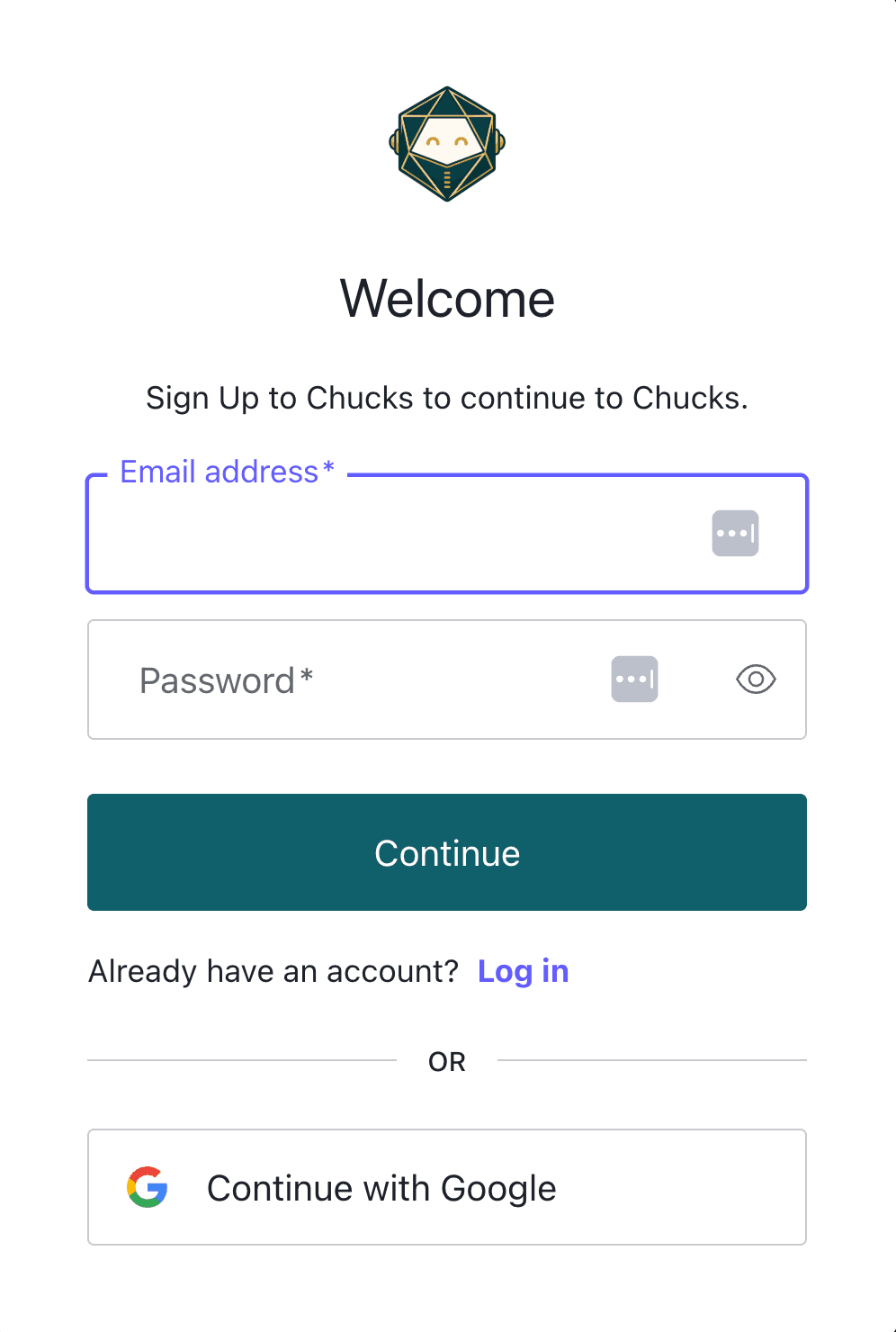
Open Chucks Chat and sign up with your email and a password, or continue with Google.
2. Add your API key
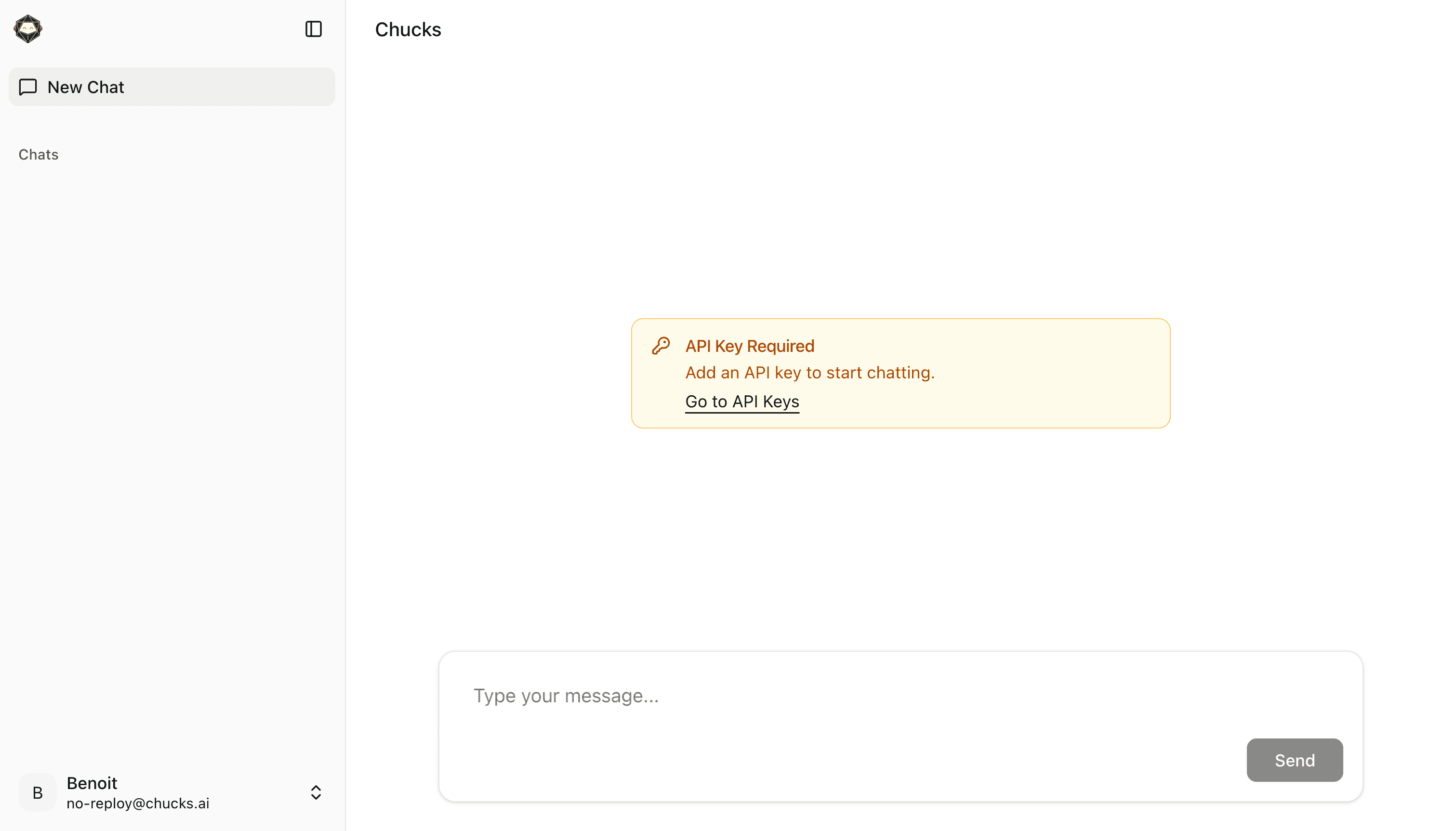
Chucks uses your AI provider key on your behalf when you chat — you bring your own key. A brand-new account doesn't have one yet, so the chat greets you with an API Key Required card. Click Go to API Keys to set one up.
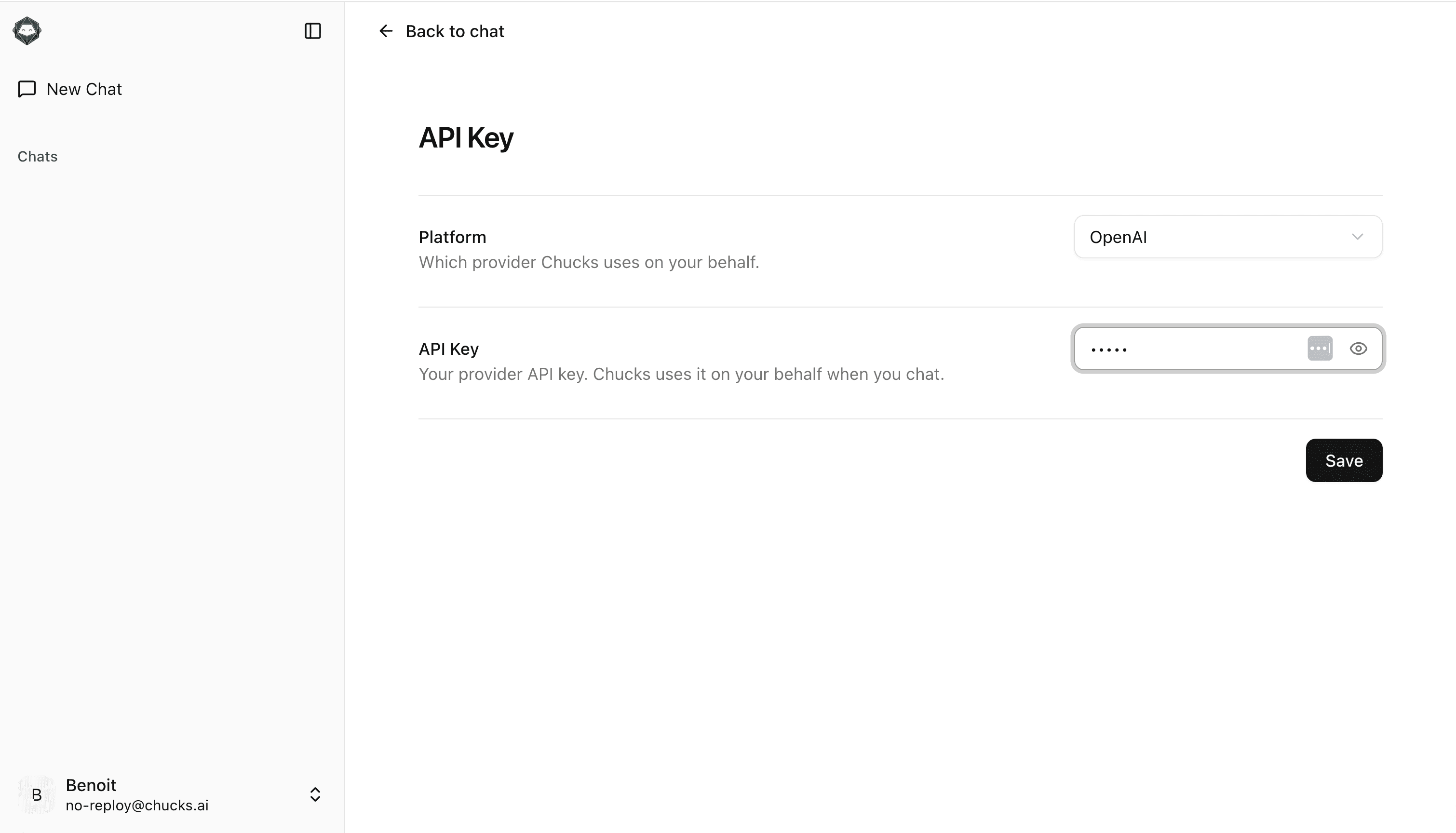
On the API Key page, pick your Platform (OpenAI, Anthropic, or Mistral), paste the matching provider key, and click Save.
3. Start chatting
Head back to the chat and ask Chucks to check a rule, look up a monster, or build you an encounter. See your first encounter for a complete worked example.